Order preview #
Stock: #
The inventory is displayed and the number of products ordered is displayed, and you can easily change if needed.
You will click the status quo to open the opening box and enter the desired number.
The number 0 is the availability of the product.
To change the context of the status quo, you can use the translation fever on the Preview Settings page. and use better words.
Price: #
This chapter displays the current price of the product. Note that the price is not sold and the selling price is currently underway.
You can change it by clicking on the product price, when two entries are taken from you, the first input is the price of the second input price of the special sales price
If your product doesn’t sell it, it will be empty.
Total: #
Total:
If the client orders a larger number of products, in normal you will only see the sum of their price, but by adding professional price Orders pro (Fees)you will also see the product with the total price.
Order Preview Settings #
Drag and prioritize each column to the columns and leave it in the right place.
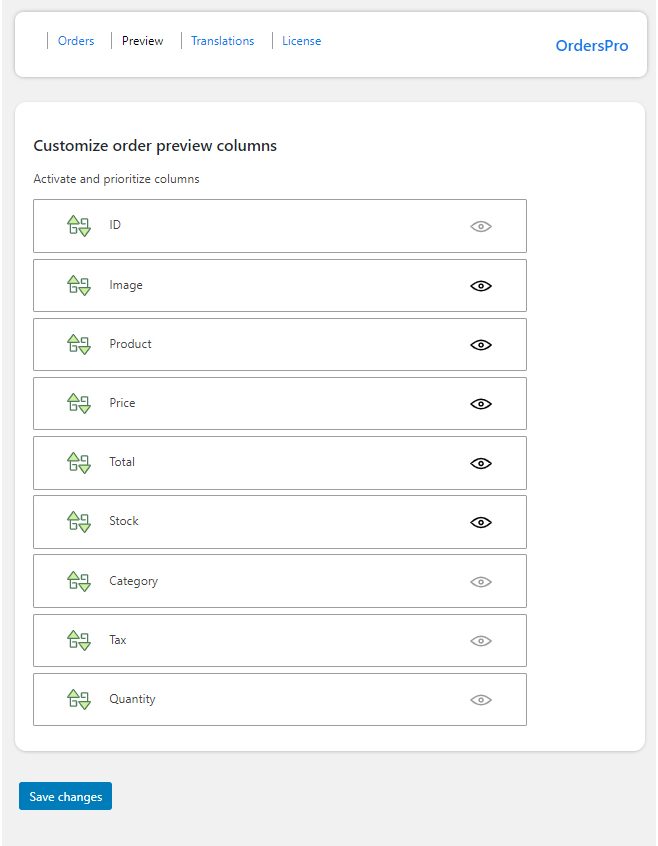
The Settings section of this chapter is on the side of the WordPress menu and the Orders pro > Preview tab.
In this chapter, you can set the columns of the order Preview items as desired.
Use icon Dare to enable / disable
Drag and prioritize each column to the columns and leave it in the right place.


Leave a Reply