View Categories

How to Remove a Server

1 min read

Learn how to efficiently remove a server that you’ve previously created in your Outline VPN setup with these step-by-step instructions.

1. Remove Related Key #

Before proceeding with the server deletion process, it’s crucial to remove any related keys associated with the server. Follow these steps:

  1. Access your PanGuards Dashboard.
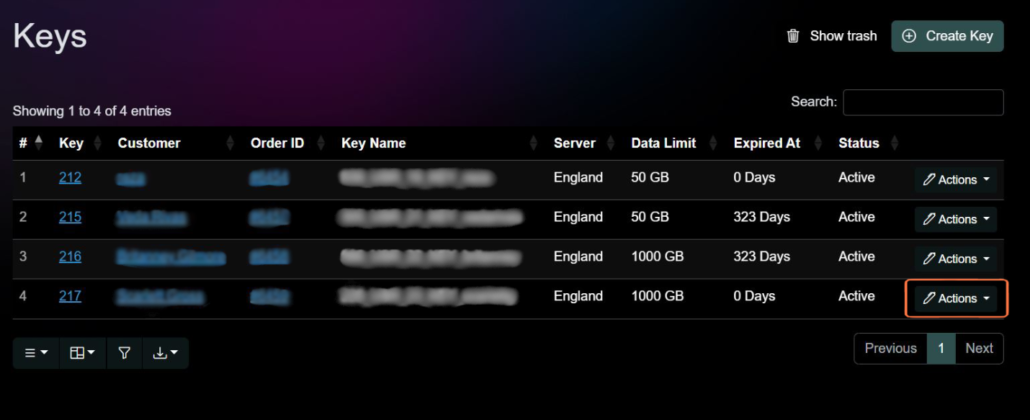
  2. Navigate to the “Keys” section within the dashboard interface.
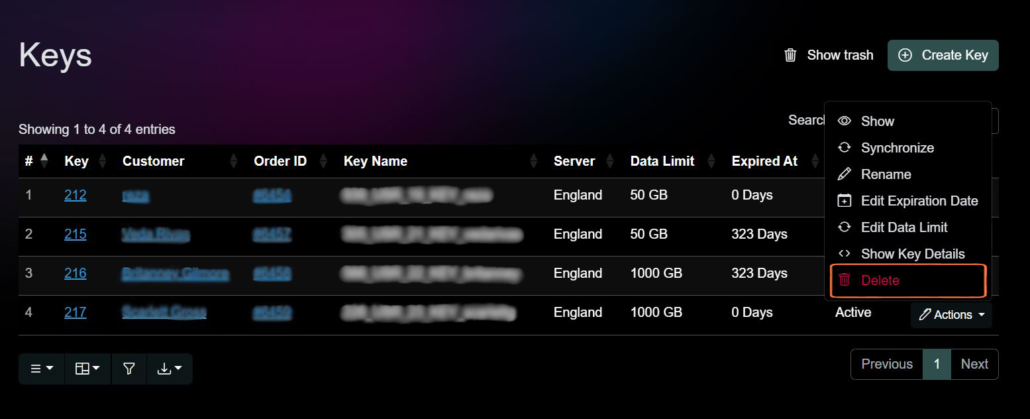
  3. Click on the “Action” button corresponding to the key you wish to remove.
  4. Select the “Delete” option to remove the key from your account.
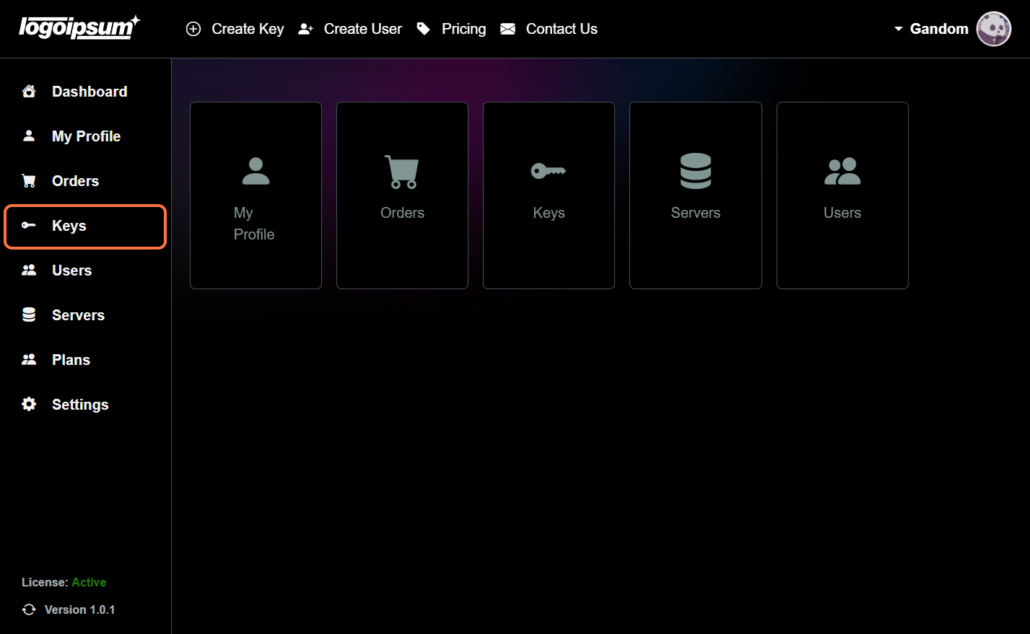
click-on-keys-image
click-on-action-image
click-on-Delete-image

2. Access Servers #

After removing the related keys, Click on the “Servers” from your PanGuards dashboard to access your list of existing servers.
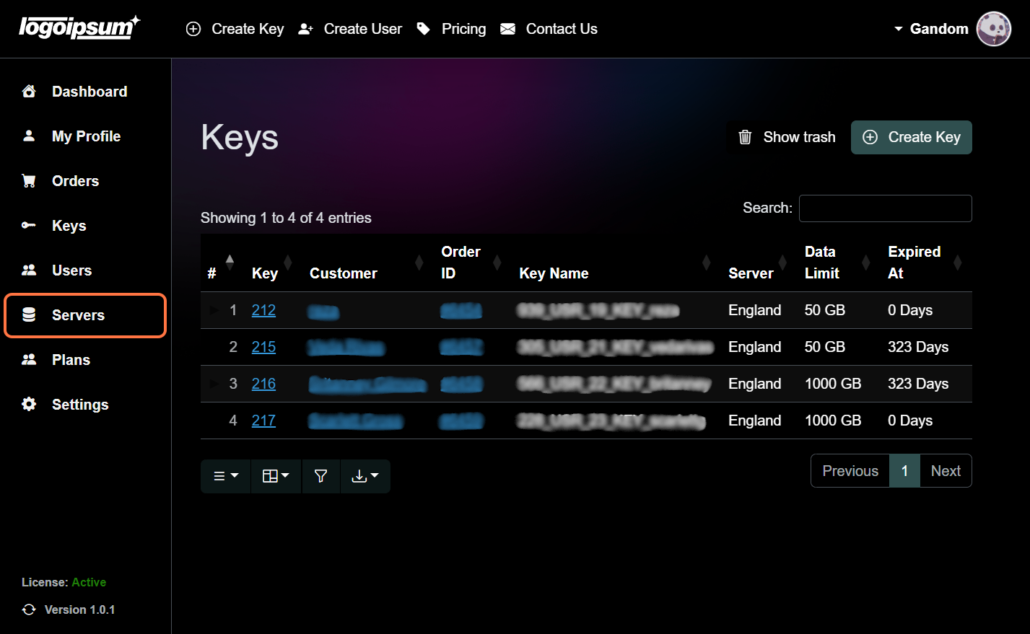
click-on-server-image

3. Delete Server #

To initiate the server deletion process, follow these steps:

  1. Locate the server you wish to delete from the list of servers.
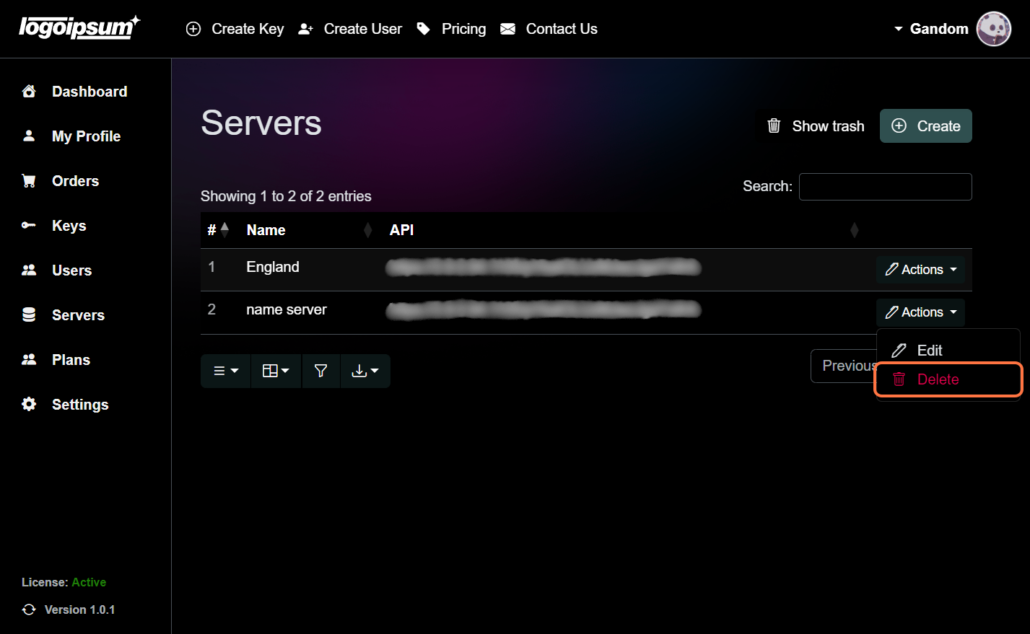
  2. click on the dropdown action trigger associated with the server entry.
  3. From the dropdown menu, select the “Delete” option.
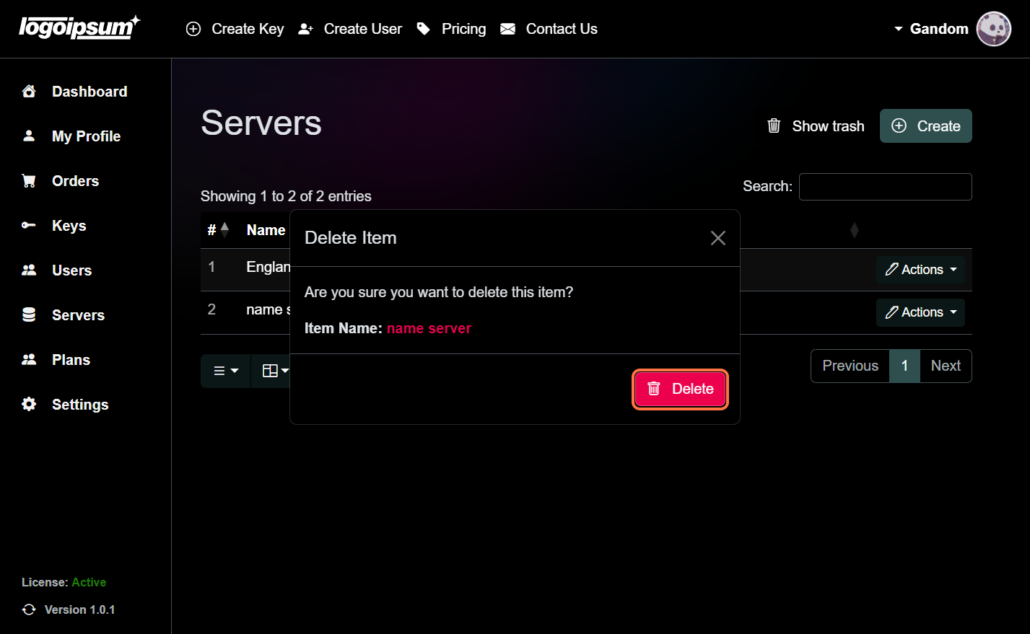
  4. Confirm the deletion action by clicking on the “Delete” button once again in the confirmation prompt.
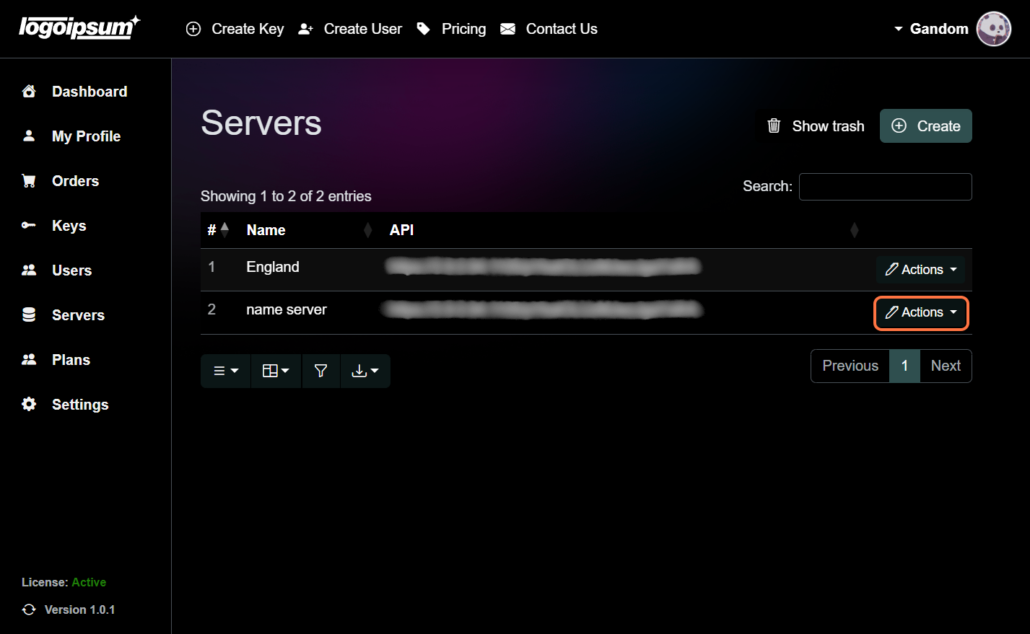
click-on-action-button-image
click-on-delete-button-image
Confirm-deletion -image

4. Restore Deleted Server #

If needed, you can still access and restore deleted servers by navigating to the “Trash” section within your Outline VPN account. From there, you can select and restore any previously deleted servers. Click on the action button next to the server you wish to manage, and then select the option to either restore it to its original state or delete it permanently from your account.
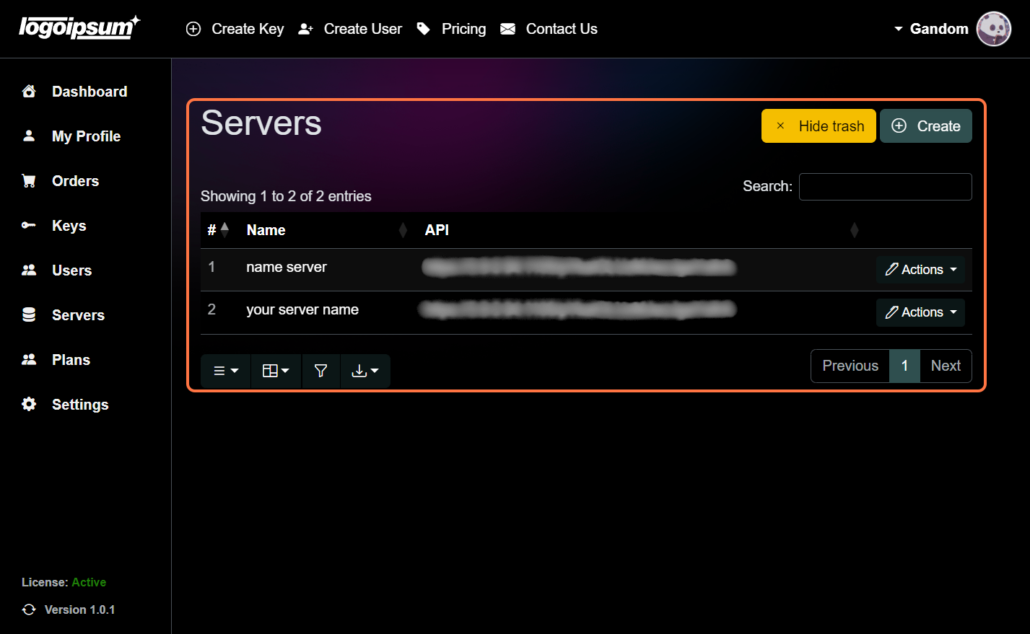
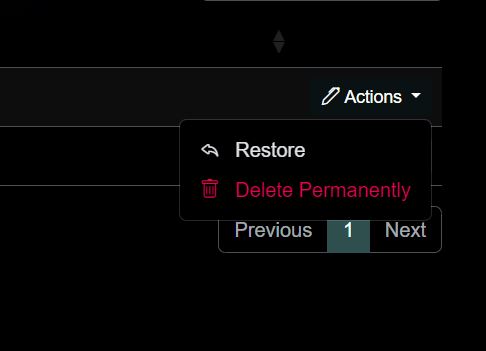
Restore-Deleted-Server-image
delete-or-restore-image

By following these steps, you’ll remove a server from your Outline VPN configuration.

Powered by BetterDocs

Leave a Reply

Your email address will not be published. Required fields are marked *

Chat with us

We are here to answer any question you may have about our services. Reach out to us and we'll respond as soon as we can.

  • ⦿ How can I purchase plugins for my website?
    To purchase plugins for your website, follow these steps: a. Navigate to the "WordPress Plugins" section. b. Browse through the available plugins and select the ones that best suit your requirements. c. Click on the "Add to Cart" button next to each plugin you wish to purchase. d. Once you have added all the desired plugins to your cart, proceed to the checkout page. e. Provide the necessary billing and payment information to complete the purchase securely. f. After a successful payment, you will receive a confirmation email with download instructions and license details for the purchased plugins.
  • ⦿ How do I get support for the software I purchased from your company?
    We're here to provide ongoing support for any software you've purchased from us: a. Sign in to your account. b. Once logged in, navigate to the "Support" section to submit a new support ticket. c. In the support ticket, detail the problem you are facing or the information you need assistance with. d. Our support team will promptly review your ticket and respond with a solution or clarification within the agreed-upon response time.
  • ⦿ Can I request a custom-built plugin or software for my unique requirements?
    Absolutely! We take pride in crafting custom solutions to perfectly match your specific needs. To request a custom-built plugin or software or website, Write us.
  • reza hajizadeh
    Customer Support
    reza hajizadeh
    Available from to
    WhatsApp
instagramyoutube

Powered by TWChat